Sunday, 16 June 2013

Maintain credit memos


Maintain credit memos
Go to task menu and select credit memos

After selecting a new window will open like this.

Here you will fill all the subjects like Date of return, credit number, then customer purchase order, sales rep invoice no, quantity of items, then item and their descriptions, their unit price their total amount and their job number, thie will maintain you record of your credit sales items.

General Journal Entry


General Journal Entry
Go to task menu and select general journal entry as shown in the window below
After selecting this following window will appear
In this subject we shall enter date which is the most important, reference number, account id, description, entry debit and credit, and summary of entry

gloabal options


GLOBAL OPTION
Open peachtree and click goto option menu ans select first option global as shown in the picture

After selecting the option you will get a new window like shown below

The decimal entry option is for to change more than two decimal places .And to put all this on automatic we will click on automatic option due to this option we have no need to place decimals it will do it automatically .It has an option to warn you if all the data is not saved
In general option we have options of print data, line of display items, data entry, and a color scheme option.
In the above window we can select peachtree partners as well
And in the last above window this is the auto spell check option which will check and auto correct you spelling.

Wednesday, 15 May 2013

maintain purchase/receive inventory.and Payments


How to maintain purchase/receive inventory.

Open Peachtree then go to task bar and click on purchase/receive inventory as in the picture below


After click on purchase/receive inventory you will get a new window as shown below

For this you have to
Fill vender account
Invoice no
Date
Then apply the purchase order no.


Payments

Go to task menu and select payments button

After selecting the payments you will receive the window as below.
Now place a payment you have to provide the following information
Vender
Date
Check no.
And pay to the order of
Quantity, item, description, GL account, unit price and amount will get fill by the same procedure.


Tuesday, 14 May 2013

how to save purchase order


how to save purchase order .
First open the existing company from peach tree software then goto task menu and select the purchase order button as shown in the picture below.
After that you will receive a window of purchase order

Here in the above window you have to enter the information about purchase order
Vender ID
Date
Purchase order number PO num
Quantity
Item
Per unit price
In this account we will maintain the vender account and inventory item account as well
Fo vender ID you will make a vender account and then select the date. Then you have to enter purchase order no. quantity of item. For item you will maintain the inventory items. Then per unit price.


Vender account


Wednesday, 17 April 2013

Maintain Vender Record In Computerized accounting


Maintain Vender Record
First open the Peachtree software and open your existing own build company. Go to the 3rd maintain menu. Go in default information and select the vender account.


You will get a vender record window
It also includes net dues in days, discount in and percent, Prepaid, Due in number of days, Due on day of next month, Due at end of month Net Due in ... Days/Due on the ...:


Age Invoices By Choose either Invoice Date or Due Date. U can also choose age vendors by Due Date and customers by Invoice Date.


Customer Fields
You can also add customer fields in different like office manager. 2 Account Rep 3 special note and also in point 4 5 

1099 Settings
In G/L Account Id and G/L Description is chart of account that you made previously
1099 Settings: The drop-down list lets you make 1099 assignments for each of the listed General Ledger accounts. You can choose from the following:


Thank you

Tuesday, 2 April 2013

maintain customers record


Maintain customers Record
To maintain customers record first open the Peachtree software and click then open you company and go to 3rd menu of Maintain click on the customers prospects button as shown in the Pic below

.  this includes information such as:
Name and address information, including separate billing and shipping information, e-mail address, and Web site address The customer's beginning balance.The preferred method of payment for this customer The date of the last invoice, statement, and payment received Sales history, including year-to-date and period-to-date sales and monthly totals  The usual sales account used for this customer    Terms of payment and the sales tax code   


After this process you can fill also sales default menu by clicking sales default button
As shown in the window.First you have to select sales from your account maintained. 
In which you can enter sales rep, GL sales account, pricing level which are different option available of pricing.
As shown in the picture below.


After that you have also an option of payments default for recording the credit customer options


As shown in the pic there is customer name address and its credit information their credit card number expire date and etc


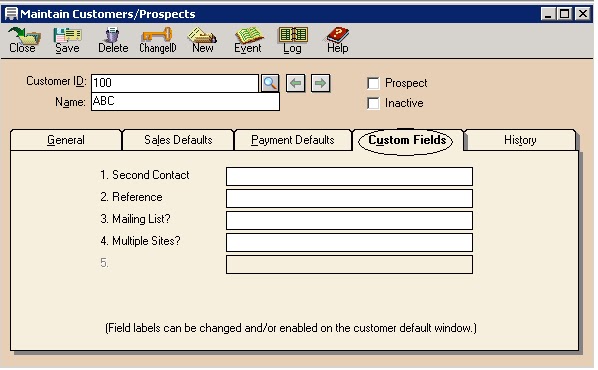
In the picture above there is an option of customer Fields this the window to enter the customer field and can change the option by filling the tabs you can change the option of feield to your required


In the window above you can also save the history of customers by date invoice


Customer Default Information

To providing the customers default information first of all go on maintain menu and select default information section as shown in the picture below

Now from default information menu select the customers button


After clicking on customers default you will get the menu of customers default
Default information for customers includes:
·         Standard customer payment terms
        General Ledger accounts for sales and discounts
·         Aging information for invoices due
·         Custom field labels
·         Finance charge rules and label
·         Customer payment methods
As shown in the picture below:


Payment terms menu:


G/L Link Accounts the defaults are used to link sales income and sales discount G/L accounts to most of your customers. You change individual customer setup, if necessary. G/L Sales Account: Enter or select the account ID you want to use as the default sales (income) account when entering customers. You must enter an account number here. Discount G/L Account: Enter the number of the account you want to use for discounts. You must enter an account number here.


Account Aging Choose either Invoice Date or Due Date. If you age by invoice date, this will show how old each customer invoice and balance is. If you age by Due Date, this will show how overdue each customer invoice is. Many people choose to age customers by Invoice Date and vendors by Due Date.


Custom fields let you set up and store that unique data. You use the custom fields to set up fields that aren't available in the Maintain Customers/Prospects window. For example, you can label customers by location (in-state, out-of-state, international). You would enter the label as Location. When you are entering a customer, you would enter his location under the Custom Fields tab.


Finance charges
Enter the balance amount over which the second interest rate will apply. On balances below this rate, the rate in the Annual Interest Rate field will apply. On balances over this amount, the second interest rate applies. This lets you offer different rates to customers depending on the balance their accounts carry.
It includes


                                           :(    :)
Thank You.